TUTORIAL & FEATURE GUIDE
Make every catch count.
Start without an account. Import a Pokédex screen recording, review the matches, find missing Pokémon, and turn your collection into a hunt plan.
Guest progress saves in this browser. An optional free account adds cloud saving and cross-device syncing through Save & sync. Keep a CSV backup before clearing browser data.
START HERE
Your first five minutes
- Start immediately in guest mode—no account is required to browse, search, or use the checklists.
- Open Collection and select a card’s checkmark to mark that Pokémon caught.
- Already have a collection? Open Import collection → Pokémon GO scan, choose a Pokédex recording, and review matches before applying them.
- Select a tag bubble such as Shiny, then use card checkmarks to assign that tag.
- Select the main area of a Pokémon card to open its Evolution Journey or acquisition guide, or browse the public Individual Pokémon Guides.
- When you want cloud backup, select Save & sync and use the emailed sign-in link. DexJourney offers to move your guest progress into the account.
Important: DexJourney is a manual collection companion. It never asks for or connects to a Pokémon GO, Google, Facebook, Apple, Niantic, Scopely, or Pokémon Trainer Club password.
GUEST FIRST · ACCOUNT OPTIONAL
Guest profiles, accounts, and syncing
DexJourney opens in guest mode so you can try the complete dashboard before signing up. Guest changes are stored on that device. A free email-link account adds cloud backup and cross-device access when you decide it is useful.
Browse every dashboard view, search the Pokédex, mark catches, apply tags, plan evolutions, and edit forms or costumes without creating an account.
Select Save & sync at any time. After sign-in, DexJourney offers to move the guest trainers saved in that browser into the account.
Use the Active Trainer menu in the sidebar to move between profiles without mixing collections.
Select Add trainer, choose a recognizable name, and start with an empty collection.
Open Trainer Profile, select Edit beside the active name, and use any distinct name up to 40 characters. Renaming changes only the DexJourney profile—not your Pokémon GO account.
The sidebar sync indicator confirms when the active profile is saved. Signed-in profiles can be opened on another device.
Guest progress stays in browser storage. DexJourney never asks for a Pokémon GO password, and creating a DexJourney account remains optional.
MILESTONES WITHOUT PRESSURE
Trainer Journey, quests, rewards, and showcase
Trainer Profile turns the records already in your collection into visible progress. Every Journey feature is separate for each trainer profile and synchronizes with its collection.
Earn permanent XP from new species, special tags, forms, costumes, ready evolution routes, badge tiers, weekly chests, completed generations, and mastered seasons. Removing and re-adding the same record cannot create unlimited XP.
Five goals are selected from collection updates, catches, Shinies, evolution planning, costumes, forms, hunt reviews, and trade records. The set resets Monday without a daily streak or missed-week penalty.
Complete all five weekly quests to secure a one-time 250 XP reward for that week. Completed weeks are recorded so the reward cannot be repeatedly claimed.
Track Kanto, costumes, Shinies, forms, evolution readiness, trade planning, hunt reviews, and overall released-Dex progress. Select any badge to see its current tier and next milestone.
Bronze, Silver, Gold, and Master tiers stay secured after they are earned, even if you later clean up a tag or trade-planning record.
Four longer-term collection goals run each calendar quarter. Mastering the season secures its trophy and a one-time 750 XP reward.
Register every released species in a generation to unlock a permanent region trophy, 500 XP, a completion celebration, and a downloadable achievement card.
DexJourney identifies small generation gaps, nearby badge tiers, and evolution routes missing one requirement, then links directly to the relevant tracker.
The transparent 1,000-point score combines released-Pokédex completion, forms and costumes, special collections, evolution planning, and badge tiers. Daily activity and spending are not score factors.
Journey Levels unlock optional profile titles, accent themes, and avatar rings. Cosmetics only change presentation and never affect scoring.
Feature up to three earned badges and three registered favorite Pokémon. Copy a privacy-safe summary or download a share card without exposing an email address or account credentials.
Completing every goal on an event checklist permanently records that event, awards 150 Journey XP once, and advances the Event Planner achievement.
Signed-in trainers can publish a separate sharing link with only the sections they choose: Journey level, summary stats, selected badges, or selected favorite Pokémon. The link can be disabled or replaced at any time and is excluded from search indexing by default.
Open Trainer Profile → Compare to create a private, expiring trade-room link. Friends can select or import their Wanted and For Trade records without an account, see matches in both directions, and optionally save their side to a new DexJourney profile.
The link owner sees anonymous totals for opens, completed comparisons, save starts, and account conversions. Friend emails, collection contents, and individual trade selections are never exposed to the owner dashboard.
Important: Journey Level is a DexJourney collection milestone. It is not your in-game Pokémon GO Trainer Level and does not grant in-game rewards.
AT A GLANCE
Overview dashboard
Overview summarizes the active trainer. Completion is calculated against Pokémon marked as released in Pokémon GO, so unreleased species do not lower the percentage.
- Progress cards show caught, Shiny, Perfect IV, and Lucky progress using the correct eligible denominator for each category.
- Recently collected uses the order in which Pokémon were marked caught.
- Collection goals provide simple milestones for caught, Shiny, and Perfect Pokémon.
- Discovery Radar previews released Pokémon still missing from the active profile.
- The moon/sun control switches the dashboard between dark and light themes.
ONE PAGE PER SPECIES
Individual Pokémon guides and battle movesets
Select Pokémon Guides in the main sidebar to browse all 1,025 public species pages. These guides are public and never require an account.
Each league has its own recommended Fast Move and two Charged Moves. Ranked recommendations use current PvPoke open-league simulations.
If a species is not present in the current open-league rankings, DexJourney labels the recommendation as an estimate instead of inventing a rank.
The raid card recommends a same-type Fast and Charged Move pair using a neutral damage-cycle estimate from current Pokémon GO Game Master values.
A gold warning appears when a recommended move may require an Elite TM or a limited evolution event.
Battle advice changes: PvP team composition, cup rules, raid-boss weaknesses, weather, Party Power, move updates, and special forms can change the best choice. Use each guide as a well-labeled starting point and check its source/update note.
PLAN BY QUESTION
Costume, evolution, and battle strategy hubs
Select Strategy Guides in the dashboard sidebar to open three public reference hubs. Each hub connects back to individual Pokémon pages, current events, and the collection tools used to save progress.
Search every released costume by Pokémon, event, or year. Cards show the exact event artwork when available, shiny status, evolution eligibility, historical availability, and a direct Costume Dex link.
Find routes that require more than Candy, including items, buddy progress, adventure tasks, lures, time windows, gender, trades, coins, and other recorded conditions.
Switch between Great, Ultra, and Master League rankings or filter raid attackers by move type. Every result includes its recommended moves and a link to the full species guide.
Reference, then verify: event availability, moves, rankings, and evolution rules can change. DexJourney shows review dates and source links so you can confirm time-sensitive decisions.
PLAN THE NEXT EVENT
Pokémon GO event guides and personal checklists
Select Events in the dashboard sidebar to browse active and upcoming guides. Every event page turns the official announcement into a practical plan while linking featured species to their individual Pokémon guides.
The event hub separates active, upcoming, and past events. Pages show the announced local-time window and an approximate countdown based on your device.
Review the bonuses, featured Pokémon, preparation steps, deadlines, and collection decisions that matter before spending time or premium items.
Choose the event goals that matter to you and mark them complete. Guest progress stays on that device; signed-in progress is stored with the active trainer and follows the account across devices.
Select Add missing Pokémon to Hunt Planner to bring that event’s unregistered featured species into one focused list. Each goal links back to its event guide and the Pokémon editor.
Finish the entire checklist to earn 150 Journey XP once and advance the Event Planner achievement on that trainer profile.
Open featured Pokémon to check their evolution requirements, forms, costumes, search examples, and PvP or raid movesets.
Use Copy quick plan on an event page to share the schedule and priority steps with friends or a local group.
Every guide shows its review date and links to the official Pokémon GO announcement. Always confirm the in-game Today view because event details can change.
THE MAIN CHECKLIST
Collection checklist
Collection contains the complete National Pokédex across Generations 1–9. Use the controls together to narrow the grid.
Choose All, Caught, or Missing. These change which cards are visible without changing your data.
Limit the grid to Kanto through Paldea. Generation 8 includes Galar and Hisui.
Show all species, only released species, or unreleased species.
Search names, Pokédex numbers, types, regions, collection states, moves, and imported inventory fields.
Example: Choose Caught, Generation 1, and search water to see caught Kanto Water types.
ORGANIZE THE COLLECTION
Tags and bulk tagging
DexJourney’s built-in species tags are separate checklists. A Pokémon can hold any combination of them.
Tag one Pokémon
- Select a bubble under Edit Tag. A banner confirms which tag is active.
- Select the checkmark on any Pokémon card to add or remove that tag.
- Adding a special tag also marks that Pokémon caught. Removing a tag leaves it caught.
- Select Done tagging or select the active bubble again to exit tag mode.
Bulk tagging by generation
- Select the tag you want to edit.
- Choose Add tag or Remove tag in Bulk Checklist.
- Select a generation or the Unidentified Pokémon group. Add skips unreleased Pokémon; Remove only clears that tag and keeps Pokémon caught.
- Use the temporary Undo action if you selected the wrong generation.
Marking caught in bulk: Exit tag mode, then choose a generation in Bulk Checklist. Every released species in that generation is marked caught.
ACCURATE COMPLETION
Category eligibility
Special-category completion is calculated only against species that can register that category in Pokémon GO. A Shiny total uses released Shinies, Shadow and Purified use historically released Shadow species, and Mega and G-Max use their released species catalogs. Perfect, XXL, and XXS use all released species.
- Each tag bubble shows registered / eligible, so the denominator changes by category.
- In tag mode, ineligible cards remain visible for context but cannot receive the selected tag.
- Bulk add changes only released, eligible species. Bulk remove can clean up an older tag that is no longer considered eligible.
- A Legacy tag label means the value came from an earlier checklist or import. It is excluded from completion but remains removable.
- Eligibility is species-level: if at least one form has historically supported the category, the National Pokédex species can qualify.
Lucky note: Lucky eligibility depends on whether the individual Pokémon can be traded. DexJourney applies species-level trade restrictions, but a specific Shadow or otherwise trade-blocked individual still cannot become Lucky.
FORM & COSTUME DEX
Regional forms, patterns, and released costumes
Open Forms & Costumes in the sidebar, then choose the Forms & Variants or Costume Dex tab. DexJourney remembers your last tab and the filters used in each catalog. Their totals remain separate, so the event catalog does not distort form completion.
Forms & Variants contains regional forms, patterns, styles, and transformations. Costume Dex contains released event appearances.
Search by species, Pokédex number, appearance, or family. Each tab shows only the filters relevant to that catalog.
Use the checkmark for a quick update, or Edit to record Shiny, Shadow, Lucky, size, Purified, and Perfect details for that form.
Open Costume Dex to see the exact event artwork on each built-in costume card, then narrow the catalog by shiny availability, evolution behavior, gender requirement, or costume-family debut year.
Select Add custom variant for personal distinctions or a brand-new event appearance that has not reached the curated catalog yet. Existing custom entries remain saved.
Unreleased forms stay visible but do not lower Form Dex completion and cannot be newly marked caught.
Form and costume cards use the species sprite as a visual anchor. The appearance name, family, release label, and saved state identify the exact checklist entry. “Family since” is the costume family’s earliest documented appearance; an individual species may have joined that family later. Attribute checkboxes are manual records and do not affect species-category completion.
SEARCH LIKE POKÉMON GO
Search operators and terms
Search is not case-sensitive. Terms can be combined into precise queries.
shiny&shadowshiny|lucky!shadowwater&!missingpikachu25#251-151#1-151+pikachucaughtmissingshinyshadowpurifiedluckyperfectgen1generation8kantohisuipaldeaunidentifiedwaterfairylegendarymythicalultrabeastreleasedunreleasedxxsxsxlxxl0*3*4*3attack3defense3hpcp1500-hp100-200age0-7year2025distance100-evolveevolvenewitemquestmegaevolvetradeevolvebuddy5mega2dynamaxgmaxgigantamaxcandyxl@shadowball@ghost@special@weather<fire>waterhatchedraidremoteraidresearchgblrocketsnapshotmegaraidexraidprimalraidtradedeggsonlydefenderweathermalefemalegenderunknowncostumebackgroundfavorite#greatleague#trade#How operators work
&means AND:shiny&luckymust match both.|, comma, colon, and semicolon mean OR:shiny|luckycan match either.!excludes a term:caught&!shinyfinds caught Pokémon without a Shiny tag.+searches an evolution family:+pikachuincludes Pokémon related to Pikachu.@searches moves and move types.<typefinds Pokémon strong against that defending type;>typefinds Pokémon whose types are strong against it.
Imported fields: IVs, CP, HP, nickname, buddy level, custom tags, age, year, distance, sources, gender, costume, and background become searchable when those values are included in a CSV or JSON import. Export a CSV to get the complete column template.
THREE CONTROLS PER ENTRY
Understanding Pokémon cards
Marks the species caught, or adds/removes the selected tag while tag mode is active.
Opens the Evolution Journey. It also shows how to obtain species with no mapped evolution route.
Opens every built-in category, the caught state, and a manual Released in GO override.
Show National Pokédex number, generation, name, type, collection tags, and released or unreleased status.
Clearing a Pokémon’s caught checkmark also clears its built-in special tags. If you only want to remove one tag, enter that tag’s mode or use Edit.
PLAN THE NEXT FORM
Evolution Journey and how to obtain
Select a Pokémon card’s main area to open its family and evolution branches. Each route lists the requirements mapped for Pokémon GO, including candy, items, lures, gender, time, buddy tasks, walking, trades, and quests.
- Select an individual requirement chip to mark it complete manually.
- When every requirement on one route is checked, the route shows Ready to evolve.
- Progress is saved with the active trainer profile.
- If no evolution route exists, the drawer shows an acquisition guide. Smeargle, for example, explains the GO Snapshot method.
- Availability can rotate with events and regions, so check linked official sources when a guide recommends it.
FIND THE GAPS
Missing Pokémon and Insights
Open Missing Pokémon after reviewing an import. For type and tag searches, follow the missing Pokémon guide and Shiny checklist guide.
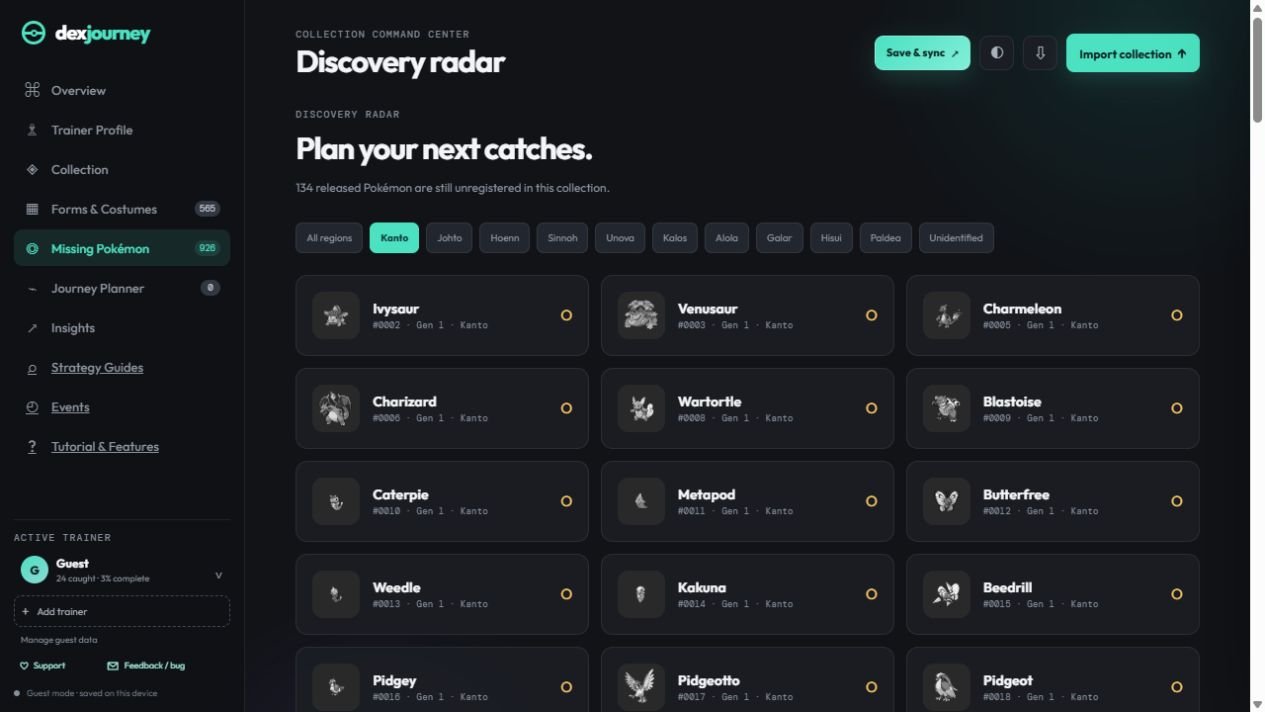
Lists released species not marked caught. Region buttons make it easy to focus on Kanto, Johto, Hoenn, Sinnoh, Unova, Kalos, Alola, Galar, Hisui, Paldea, or the Unidentified Pokémon group containing Meltan and Melmetal.
Summarizes released-species completion, regional progress, eligible progress for every built-in category, and Form & Variant Dex completion.
Unreleased Pokémon remain visible in Collection when requested, but they are excluded from missing totals and completion percentages.
BRING DATA IN OR TAKE IT WITH YOU
Import and export
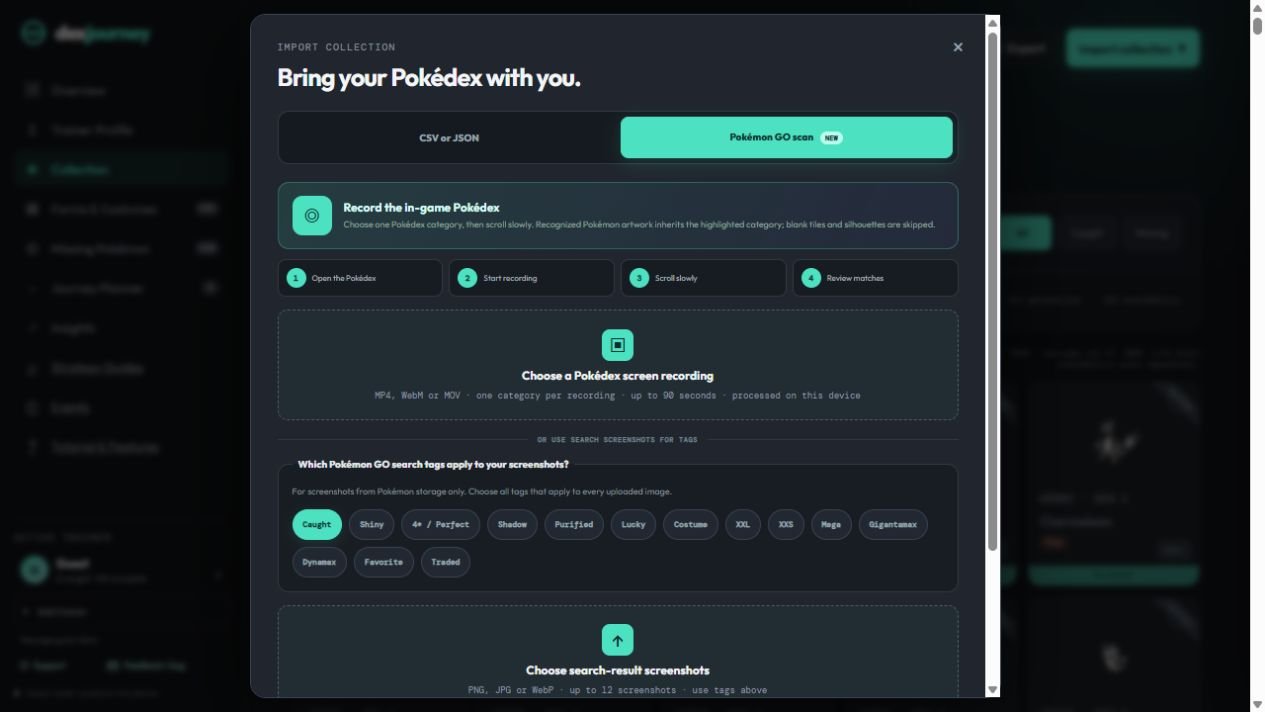
Scan a Pokémon GO Pokédex recording
- In Pokémon GO, open one Pokédex category and record a slow scroll through its tiles.
- In DexJourney, choose Import collection → Pokémon GO scan and select an MP4, WebM, or MOV recording up to 90 seconds long.
- Review the detected category and recognized Pokémon before applying matches. Blank tiles and silhouettes are skipped; correct recognition mistakes before saving.
- Repeat with a separate recording for another category. Export a CSV backup after reviewing your collection.
Import Pokémon storage screenshots
The same scan tab accepts up to 12 PNG, JPG, or WebP search-result screenshots. Select only the tags that apply to every uploaded image. This is separate from recording a Pokédex category. Review the scan results before applying them.
Export a CSV
Select the download icon in the top bar or open Manage account & data → Export a CSV backup. The file contains the active trainer’s species states, tags, form and variant records, imported inventory fields, release overrides, evolution progress, event checklist progress, Hunt Planner event goals, Journey XP, achievements, and Trainer Profile showcase choices.
Import CSV or JSON
- Select Import collection and choose a `.csv` or `.json` file.
- Choose Merge to update matching species while keeping everything else.
- Choose Replace only when the file should become the entire profile; species absent from it become missing.
- Review the dashboard after import, then export a fresh backup.
Showcase privacy: The backup restores your profile title, theme, featured badges, featured Pokémon, public name, and visibility choices. It does not create, replace, or reactivate a public showcase link; those revocable links remain protected by the signed-in account that published them.
Recommended: Export before any large import, bulk change, profile deletion, or account deletion. DexJourney exports CSV—not JSON—so the backup is easy to open in spreadsheet software.
UNDO BEYOND THE TOAST
Version history and recovery
Open Manage account & data → Version history to review up to 20 earlier snapshots for the active trainer. DexJourney creates a restore point before each saved change, including imports, bulk updates, variant edits, and profile resets.
- Wait for the sidebar to say that cloud changes are saved.
- Open Version history and choose a dated restore point.
- Confirm Restore. DexJourney saves the version you have now before loading the older one, so you can reverse the restore too.
Storage matters: Signed-in history is kept with the cloud trainer. Local-mode history stays only in that browser. Deleting a profile/account or clearing browser site data also removes its corresponding restore points, so CSV remains the portable backup.
RELEASE CATALOG
Release status
Each card is labeled Released or Unreleased using DexJourney’s bundled Pokémon GO catalog. Release status affects completion totals, Missing Pokémon, and bulk-add behavior.
- Use the Availability dropdown to review released or unreleased species.
- If the catalog is temporarily wrong, choose Edit → Released in GO to create a manual override for that profile.
- Game availability changes with new releases and events; the review date shown above the collection explains the age of the bundled snapshot.
TURN YOUR DEX INTO A PLAN
Journey Planner
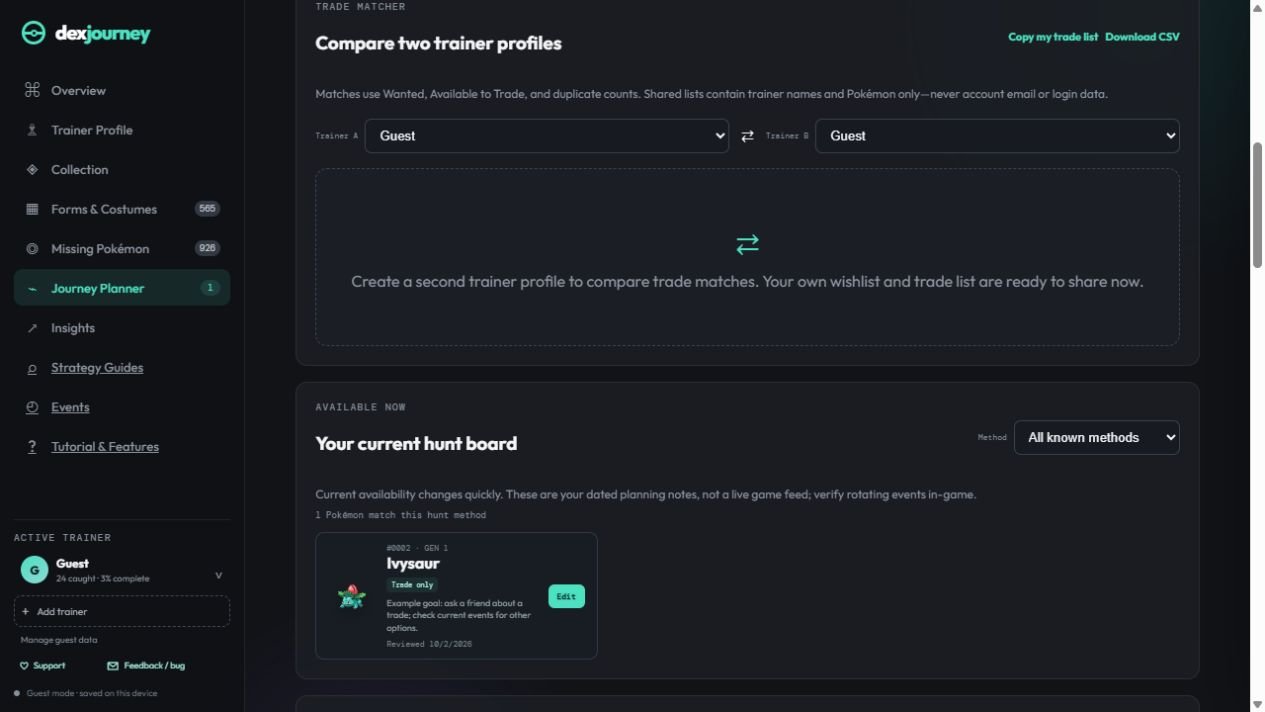
For a hunt goal, open a Pokémon’s Edit panel in Collection, mark it Wanted, and add a current hunt method and dated note. The hunt board lives in Journey Planner. Use event guides and checklists to add missing featured Pokémon, and species guides to check acquisition and evolution requirements.
Choose Edit on a Pokémon card to record nickname, gender, CP, IVs, buddy level, moves, exact costumes owned, custom costumes, special flags, source, duplicates, and an acquisition note. Costume selections synchronize with Costume Dex and display their event artwork on collection cards. If you own several, use the ↻ button to cycle through them.
Run a search, select the star beside the search box, and name it. Smart, recent, and saved list chips appear above Collection.
Mark species Wanted or Available to Trade, enter duplicates, then compare two trainer profiles. Copy or download a privacy-safe list without login details.
Use Trainer Profile → Compare when the other trainer is not already one of your profiles. Links expire after 1, 7, 14, or 30 days and can be disabled or replaced immediately.
Add dated Wild, Raid, Egg, Research, Regional, Max Battle, Trade-only, or Currently Unavailable notes. These are personal planning notes, separate from historical release status.
Open an evolution family and enter Candy, Mega Energy, coins, and evolution items. Resource requirements resolve automatically; buddy, gender, time, trade, and quest steps remain manual.
Availability reminder: Event pools rotate. Verify the hunt board against the in-game Today view and official Pokémon GO news.
OPTIONAL SUPPORT
Supporting DexJourney
Select Support DexJourney beneath Manage account & data to open the voluntary-support panel. You can scan or open the Venmo profile, or scan, copy, or open the Bitcoin receiving address.
- Always verify the recipient before confirming a payment.
- Send BTC using the Bitcoin network only; cryptocurrency transfers are irreversible.
- Support is optional and is not represented as a tax-deductible charitable donation.
KEEP THE JOURNEY SAFE
Account safety and troubleshooting
- DexJourney sign-in emails only open your checklist account. Never enter a Pokémon GO or other game-platform password.
- If a save is interrupted, check the sync message in the sidebar. Reconnect before making more changes.
- If two devices edit the same profile simultaneously, load the current cloud version and reapply any change that did not save.
- Use separate trainer profiles instead of repeatedly replacing one profile’s data.
- Use Version history to recover an earlier save; keep CSV exports for long-term or off-site backups.
- Keep occasional CSV backups, especially before destructive account actions.